
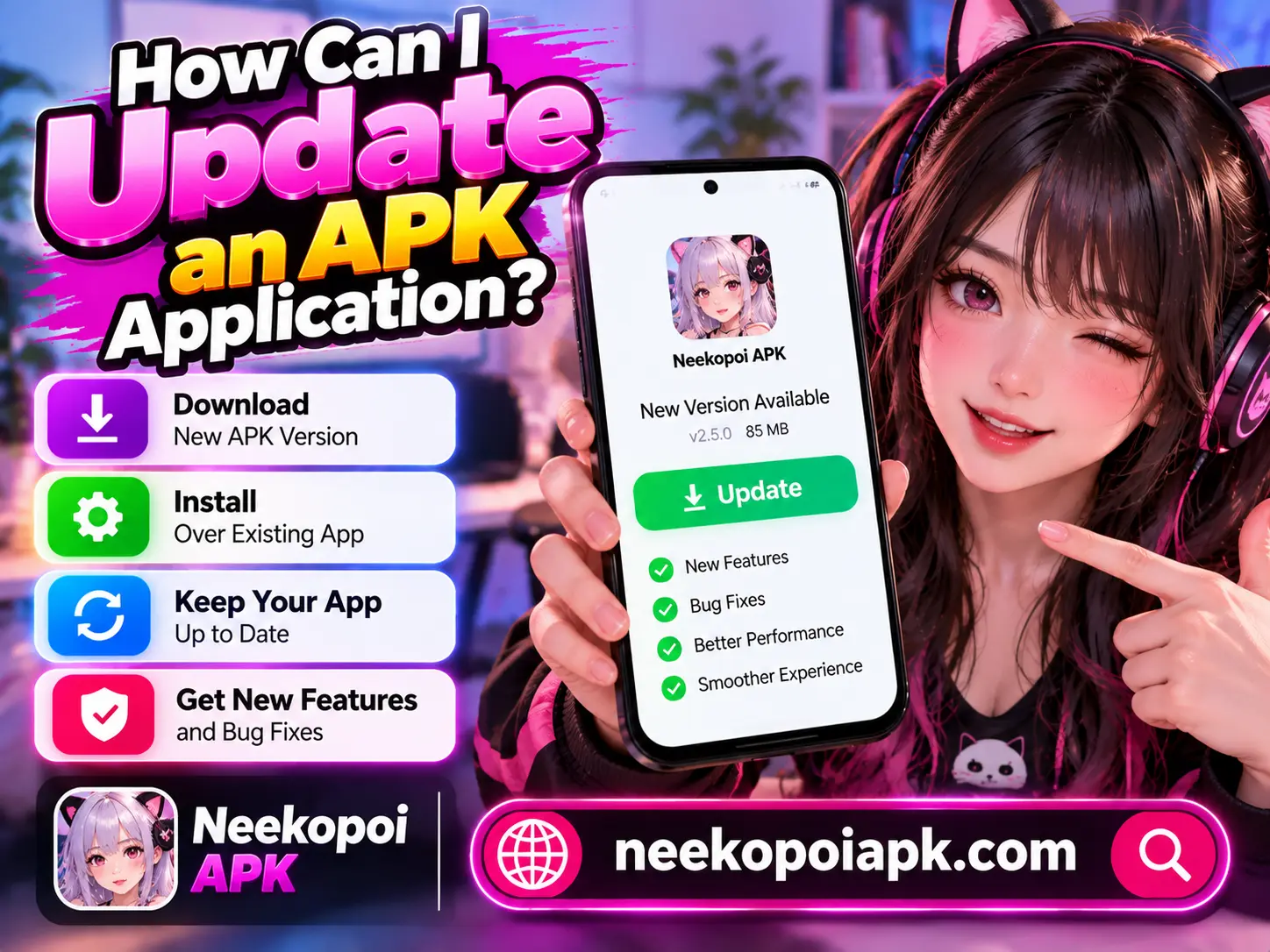

Updating an Android app installed through an APK file can help you access new features, fix bugs, and improve performance. If you use apps downloaded from websites such as Neekopoi APK, understanding the update process is especially important. Unlike apps installed through Google Play, APK applications may require you to download and install a newer version manually.
In this guide, you will learn how to update an APK application, check for newer versions, avoid common installation problems, and keep your Android device secure.
What Is an APK Application?
APK stands for Android Package Kit. It is the file format Android uses to distribute and install applications. When you download an APK file from a website, you can use it to install an application without visiting the Google Play Store.
Some websites, including Neekopoi APK, may provide information about Android applications and their installation. However, always check the source, developer, and available version before downloading any file.
Why Should You Update an APK App?
Updating an application can provide several benefits:
- Bug fixes: New releases may correct problems found in earlier versions.
- Improved compatibility: Updates can help an app work with newer Android versions.
- New features: Developers may add tools, settings, or other improvements.
- Performance improvements: Some updates address crashes and slow loading.
- Security improvements: Updates may fix known security vulnerabilities.
However, an update does not automatically guarantee better performance or complete security. Always review the source and release information before installing it.
How Can I Update an APK Application?
There are several ways to update an APK application on Android. The correct method depends on where you originally installed the app and whether its developer provides an update through an official store.
Update the App Through Google Play
If the application is available on Google Play and you installed it from there, updating is straightforward.
- Open the Google Play Store on your Android phone.
- Search for the application you want to update.
- Open its official app listing.
- Tap Update if the option is available.
- Wait for the installation to finish.
- Open the app and check that it works correctly.
If you see an Open button instead of Update, your device may already have the latest version available through that store.
Update the App Using a New APK File
If you installed the application manually, you may need to download a newer APK file from a trustworthy source.
Follow these steps:
- Check your current version. Open Android Settings and look under Apps or App Management. Select the application and check its version information if available.
- Find a newer release. Visit the app developer’s official website or another source you can verify. Check the version number and release date.
- Download the APK. Make sure the file matches your device and the application you want to update.
- Open the downloaded file. Find it in your Downloads folder or tap the download notification.
- Review the installation prompt. Android may ask you to allow installation from that particular source. Only grant this permission if you trust the source.
- Tap Install. If Android recognizes the file as a compatible update, it may update the existing application.
- Open the app. Confirm that the update works and that your settings or data remain available.
You generally do not need to uninstall the existing app first. Keeping it installed may preserve your data, provided the new version is compatible and signed with the same app-signing key.
What Should You Check Before Updating an APK?
Before installing a new version, take a few precautions to avoid problems.
Verify the App Version
Compare the installed version with the version offered by the developer. A higher version number does not, by itself, prove that a file is authentic or safe.
Back Up Important Data
Some updates may reset settings or cause compatibility issues. Back up important information whenever the app supports it. Do not assume that uninstalling and reinstalling will preserve your data.
Check Android Compatibility
An APK may require a newer Android version or a particular device architecture. Review the app’s requirements before downloading it.
Download From a Trustworthy Source
Avoid suspicious download buttons, unexpected redirects, and APK files that request unrelated permissions. Keep Google Play Protect enabled and scan downloads when appropriate.
Common APK Update Problems and Their Solutions
Sometimes an APK update fails even when you follow the correct steps. Here are common causes and possible solutions.
App Not Installed Error
This error may appear when the APK is incompatible, corrupted, or signed differently from the installed application. Verify that you downloaded the correct package and a legitimate update.
Parsing Error
A parsing error can occur when a file is incomplete, damaged, or incompatible with your Android version. Download the file again from a verified source and check the app’s minimum requirements.
Not Enough Storage Space
Updates need sufficient free space to download and install. Remove unnecessary files or apps if needed, then try again.
The App Keeps Crashing
Restart your phone and check whether the application requires another update. You can also clear its cache through Android Settings. Avoid clearing app data unless you understand that doing so may remove saved information.
If the problem continues, consult the app developer rather than installing several unverified APK files.
Is It Safe to Update APK Applications?
Updating an APK can be safe when you use a legitimate, compatible release from a trustworthy source. However, modified or fake APK files may contain harmful software or collect information without your knowledge.
Before installing an update, verify the developer, review requested permissions, keep Android security features enabled, and avoid files shared through unknown messages or suspicious websites.
For information about apps discussed on Neekopoi APK, independently verify the download source and available release details before installing anything. A website listing or download page alone does not establish that an APK is safe.
Final Thoughts
Updating an APK application is usually simple once you understand the process. You can use Google Play when an official listing is available or manually install a newer APK from a source you trust.
Always check compatibility, confirm the version, back up important data, and avoid suspicious files. These steps can help you update Android applications more confidently while reducing the risk of installation errors and security problems.