
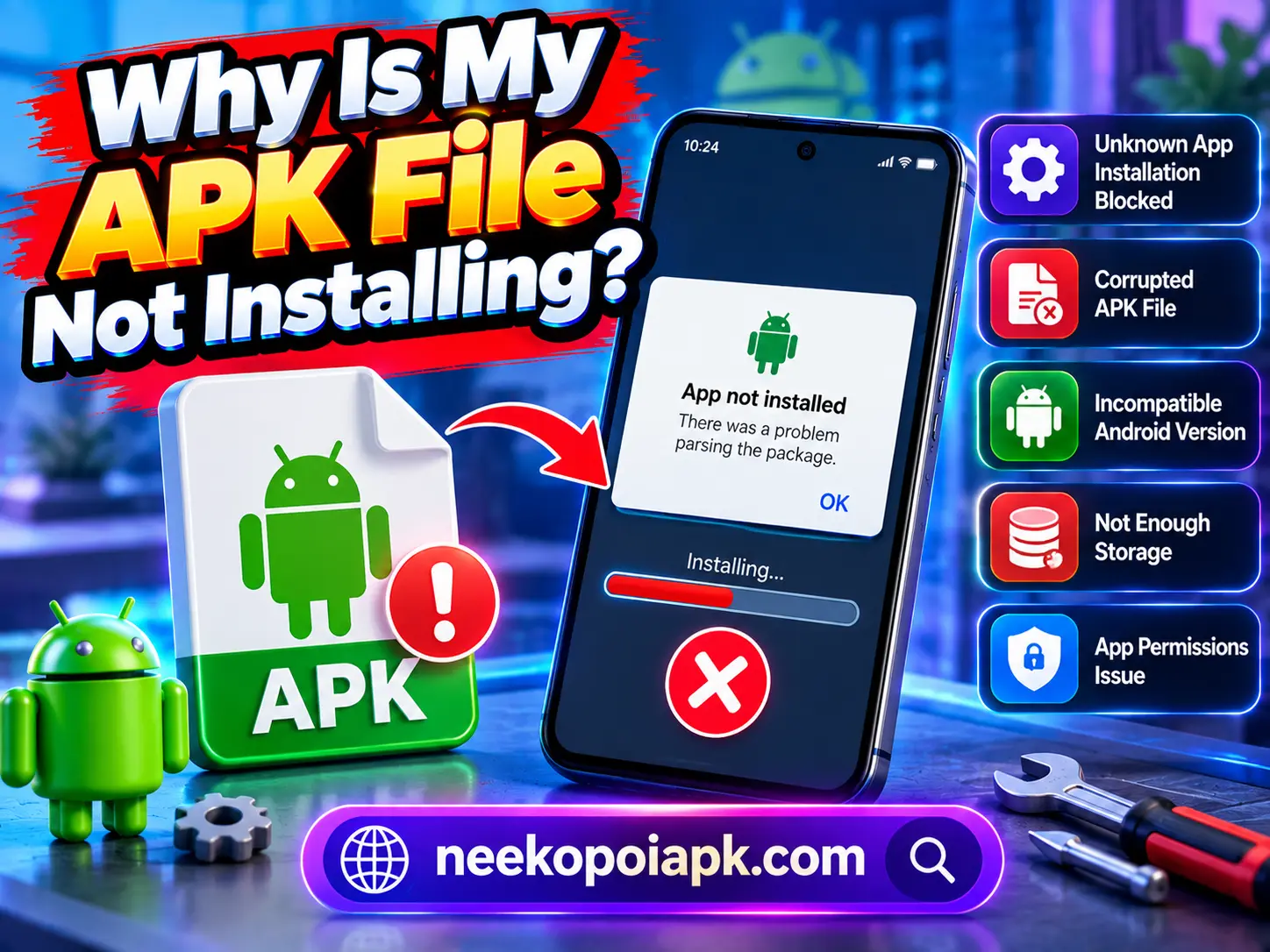
If you downloaded neekopoiapk or another APK file but Android refuses to install it, you are not alone. APK installation problems are common, especially when the file comes from outside the Google Play Store. The good news is that most installation errors have simple causes, such as an incompatible Android version, insufficient storage, blocked permissions, or a damaged APK file.
In this guide, we will explain the most common reasons an APK does not install and show you practical ways to troubleshoot the problem.
What Is an APK File?
APK stands for Android Package Kit. It is the file format Android uses to install applications. When you download an app outside the Google Play Store, you may receive an APK file that needs to be installed manually.
For users trying to install neekopoiapk, the process can fail if Android considers the file incompatible, unsafe, incomplete, or improperly packaged.
Before trying advanced solutions, check the basics first.
Why Is My APK File Not Installing?
There are several possible reasons an APK may fail to install. Let’s look at the most common ones.
Unknown App Installation Is Blocked
Modern Android versions restrict APK installations from unknown sources by default. This is a security feature designed to prevent unwanted applications from being installed.
If you downloaded neekopoiapk through your browser, Android may ask you to allow that browser to install unknown apps.
Go to:
Settings → Apps → Special App Access → Install Unknown Apps
Then select the browser or file manager you used to open the APK and enable the appropriate permission.
The exact menu can vary depending on your Android phone manufacturer.
The APK File Is Corrupted
A damaged or incomplete APK may not install correctly. This can happen when a download is interrupted or the file is modified incorrectly.
If Android displays an error such as “There was a problem parsing the package,” the APK may be corrupted or incompatible.
Try downloading the file again from a source you trust. Make sure the download finishes completely before opening the file.
Your Android Version Is Not Compatible
Some applications require a specific Android version. If your phone uses an older Android release, the APK may refuse to install.
For example, an application designed for newer Android versions may not work correctly on an older device.
Before installing neekopoiapk, check the app’s stated Android requirements and compare them with your phone’s software version.
You can usually find your Android version under:
Settings → About Phone → Android Version
Your Phone Does Not Have Enough Storage
Low storage can also prevent APK installation.
Even if the APK itself is relatively small, Android may need additional space to unpack and install the application.
Check your available storage under your phone’s storage settings. If space is low, remove unnecessary downloads, videos, apps, or temporary files.
After freeing some storage, restart the installation.
How to Fix APK Installation Problems
If your APK still will not install, work through the following solutions.
Check the APK File Extension
Make sure the downloaded file actually ends with .apk. Some downloads may be incomplete or saved in another format.
If the file has an unusual extension, do not simply rename it and assume it will work. Instead, download the correct Android package again.
Restart Your Android Device
A simple restart can sometimes solve temporary installation problems.
Close your apps, restart the phone, and try installing the APK again. This can clear temporary system issues and release storage or system resources that may be in use.
Remove an Older Version
If the same application is already installed, Android may reject another package because of a signature or package conflict.
If you previously installed the application and are trying to install a different version, check whether an older version is already present.
Only uninstall an existing version if you are comfortable doing so and have considered whether its data needs to be preserved.
Avoid Installing Modified or Suspicious Files
Not every APK available online is trustworthy. Modified packages can contain unwanted software or may have been repackaged incorrectly.
For neekopoiapk and other APK files, download only from sources you trust. Before installation, consider scanning unfamiliar files with reputable security software.
Android’s built-in security features can also warn you about potentially harmful applications.
What Does “App Not Installed” Mean?
The “App not installed” message is a general Android error. It does not always identify the exact problem.
The cause could be:
- An incompatible Android version
- Insufficient storage
- A corrupted APK
- A conflicting installed version
- An incorrect APK package
- Installation restrictions
- A package or signature conflict
Because the message is generic, checking each possibility is often the easiest way to identify the problem.
Can an APK Be Too Old or Too New?
Yes. Compatibility works in both directions.
An old APK may not work properly with newer Android security or system requirements. Meanwhile, a newer APK may require Android features that an older phone does not support.
Therefore, always check the application’s compatibility information before installation.
If neekopoiapk does not install after you have checked permissions, storage, and the file itself, compatibility may be the next thing to investigate.
Final Tips for Installing an APK Successfully
When an APK refuses to install, don’t immediately assume that your phone is broken. Start with the simplest checks.
First, confirm that you have enough storage. Next, make sure your browser or file manager has permission to install unknown apps. Then check the Android version and verify that the APK downloaded completely.
If the problem continues, download the file again from a trusted source and avoid suspicious or heavily modified packages.
For users installing neekopoiapk, these basic troubleshooting steps can help identify common installation problems without making unnecessary changes to the device.
Final Thoughts
APK installation can seem confusing when Android only displays a generic error message. However, most problems have a straightforward explanation. Permission settings, incompatible Android versions, damaged downloads, insufficient storage, and package conflicts are among the most common causes.
By checking these areas one by one, you can usually determine why an APK is not installing and choose the safest next step. Always use trusted sources and keep your Android device’s security features enabled when installing applications outside the Google Play Store.